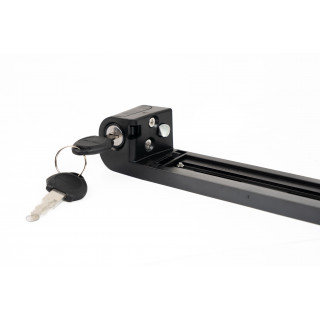
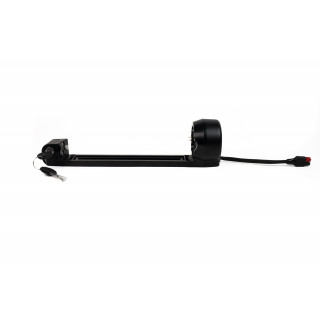
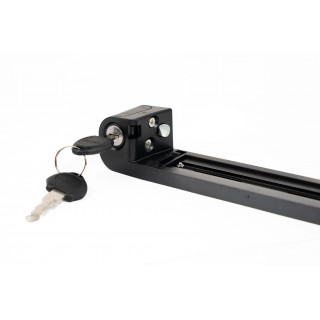
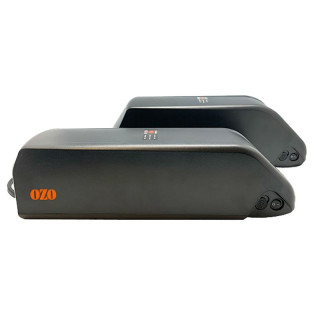
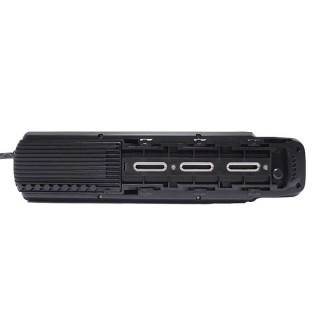
Mounting rail for 360Wh GOURDE battery without a controller, perfect for mid-drive motors with an integrated controller or if you already have an external controller.
Anderson power connector.
Mounting rail for 250Wh GOURDE battery without a controller, perfect for mid-drive motors with an integrated controller or if you already have an external controller.
Anderson power connector.
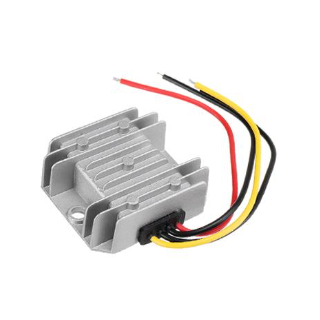
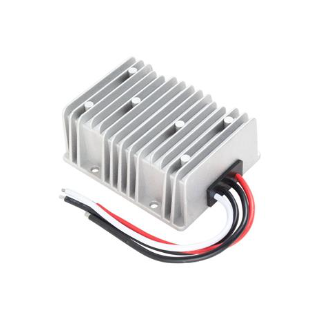
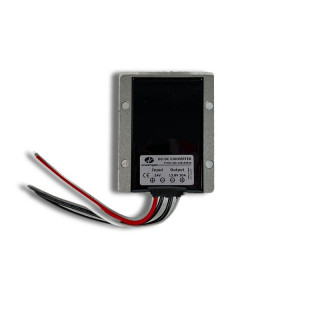
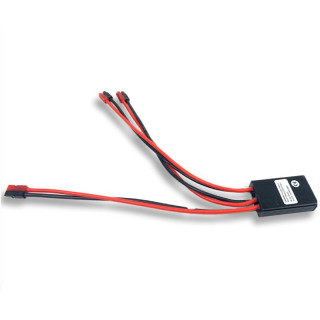
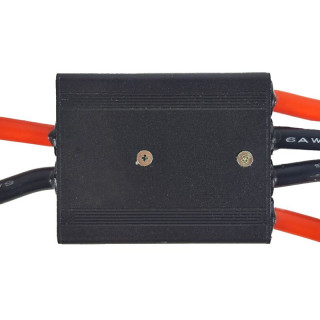
Step Down Converter DC-DC
Input min/max : 26V à 60V
Output : 12 V
Current : 20A
Power : 240W
Waterproof : IP67
Ideal for caravaning, electric motorcycle or scooter or any electric vehicle that need 12V 20A...
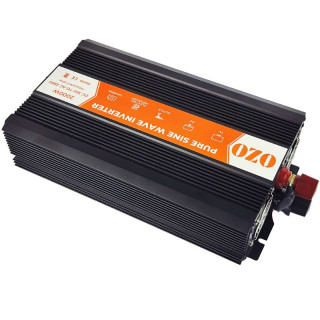
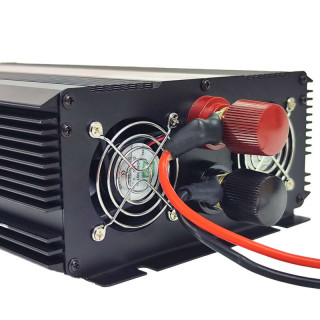
OZO has specially developed this 2000W pur sinus inverter to let you use your 36V ebikes battery to power all your electric devices that work under 230V voltage.
Ideal for camping, handcraft, gardening...
Just plug...
These modules allow for the parallel connection of batteries to increase their autonomy.
Compatible only with generic batteries of the same voltage, although the battery capacity may vary.
The small module is...
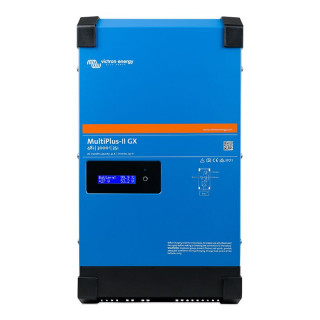
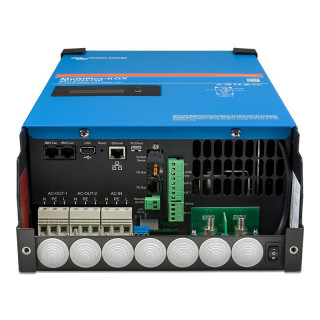
The MultiPlus II GX is an inverter/charger that features grid interconnection.
It is therefore possible to connect your MultiPlus to your solar charger or your battery.
You can remotely monitor your MultiPlus,...
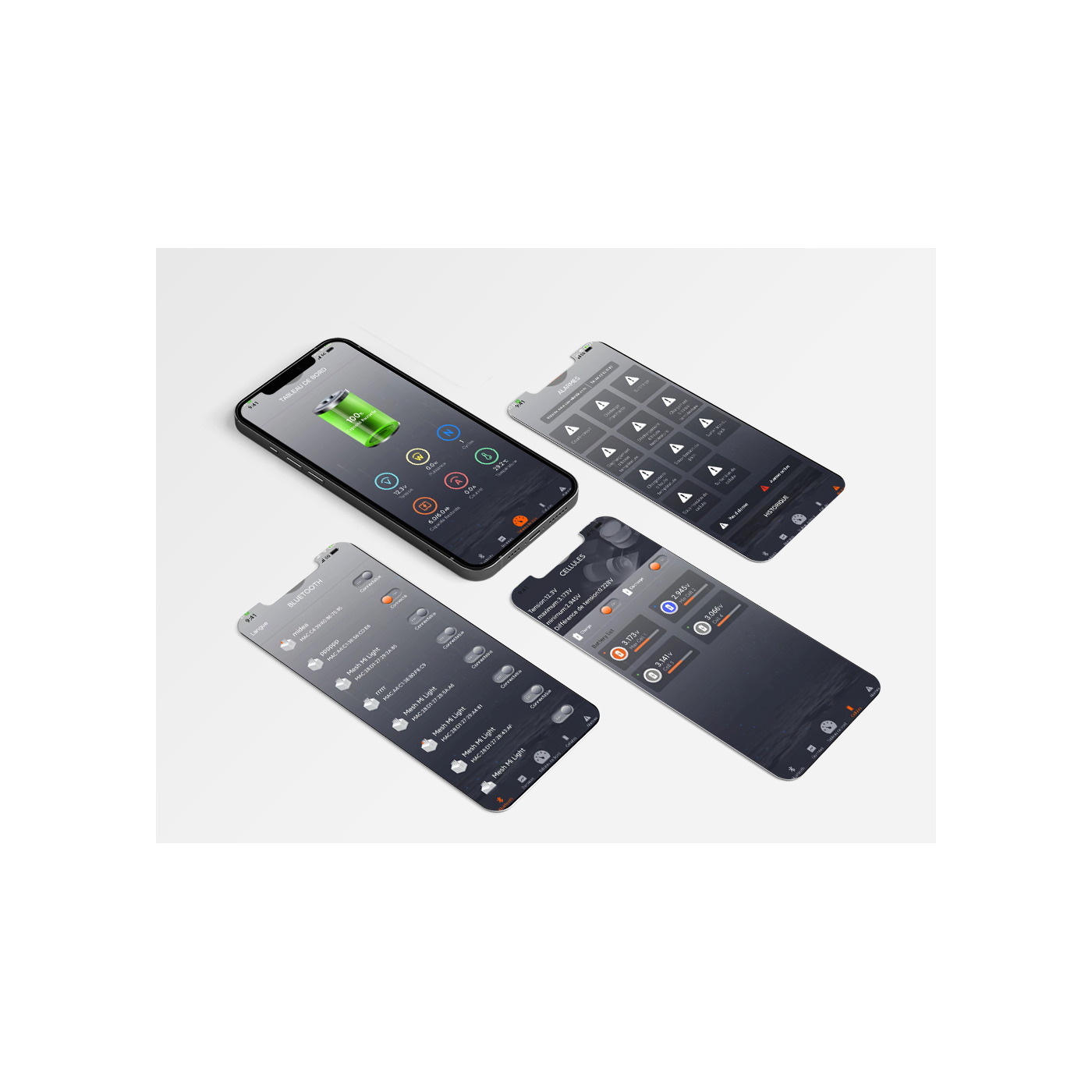
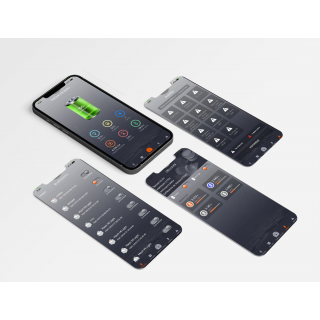
The OZO BATTERIES app allows you to communicate with the BMS of your OZO battery in Bluetooth in order to read the battery parameters like the instantaneous discharge power, charging current, battery charge status, battery voltage, the voltage of each cell, the temperature, the number of cycles of use, etc.
You can also remotely control your battery to put it on standby, stop charging or discharging and change the battery name if you use multiple batteries.
Dashboard
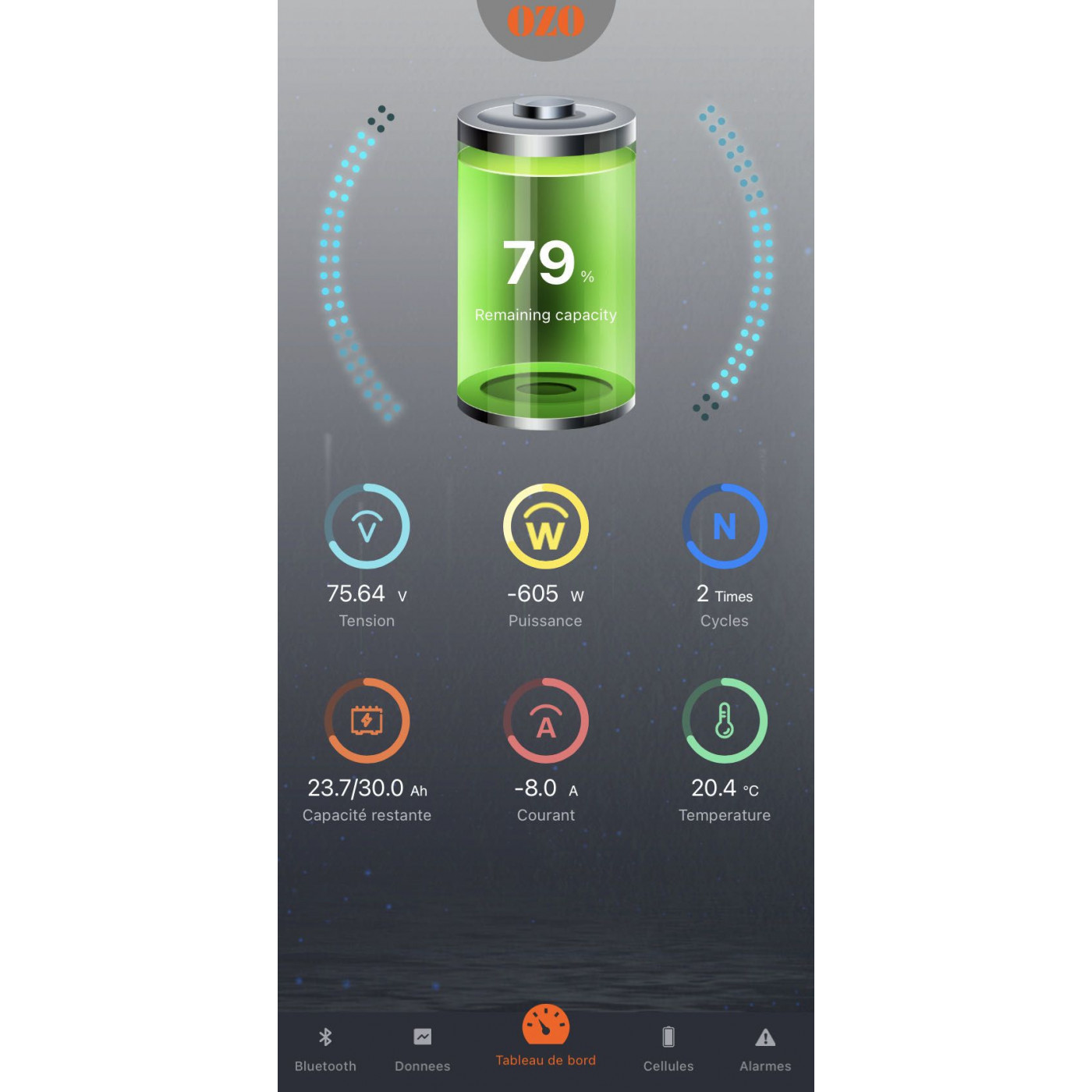
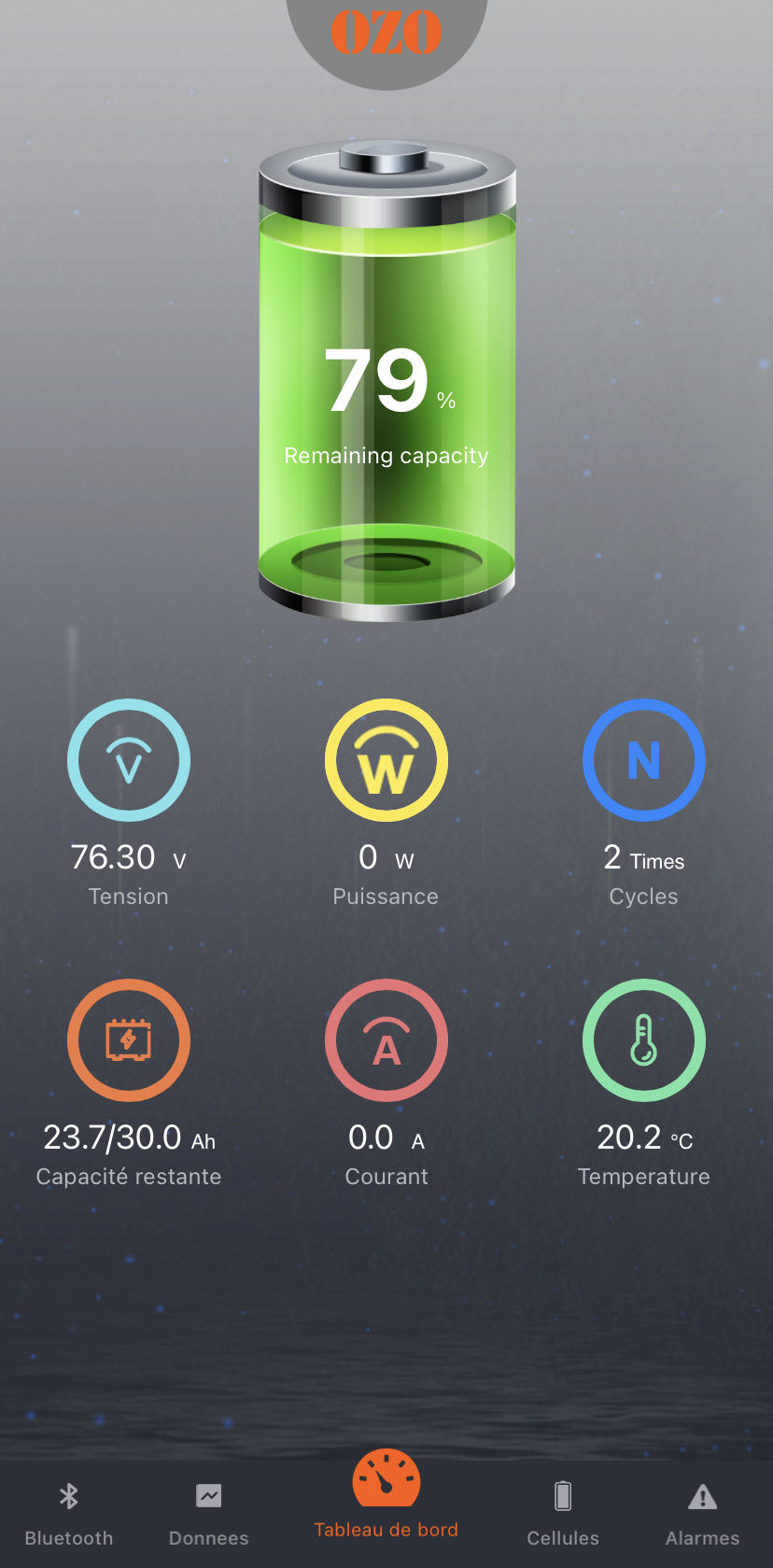
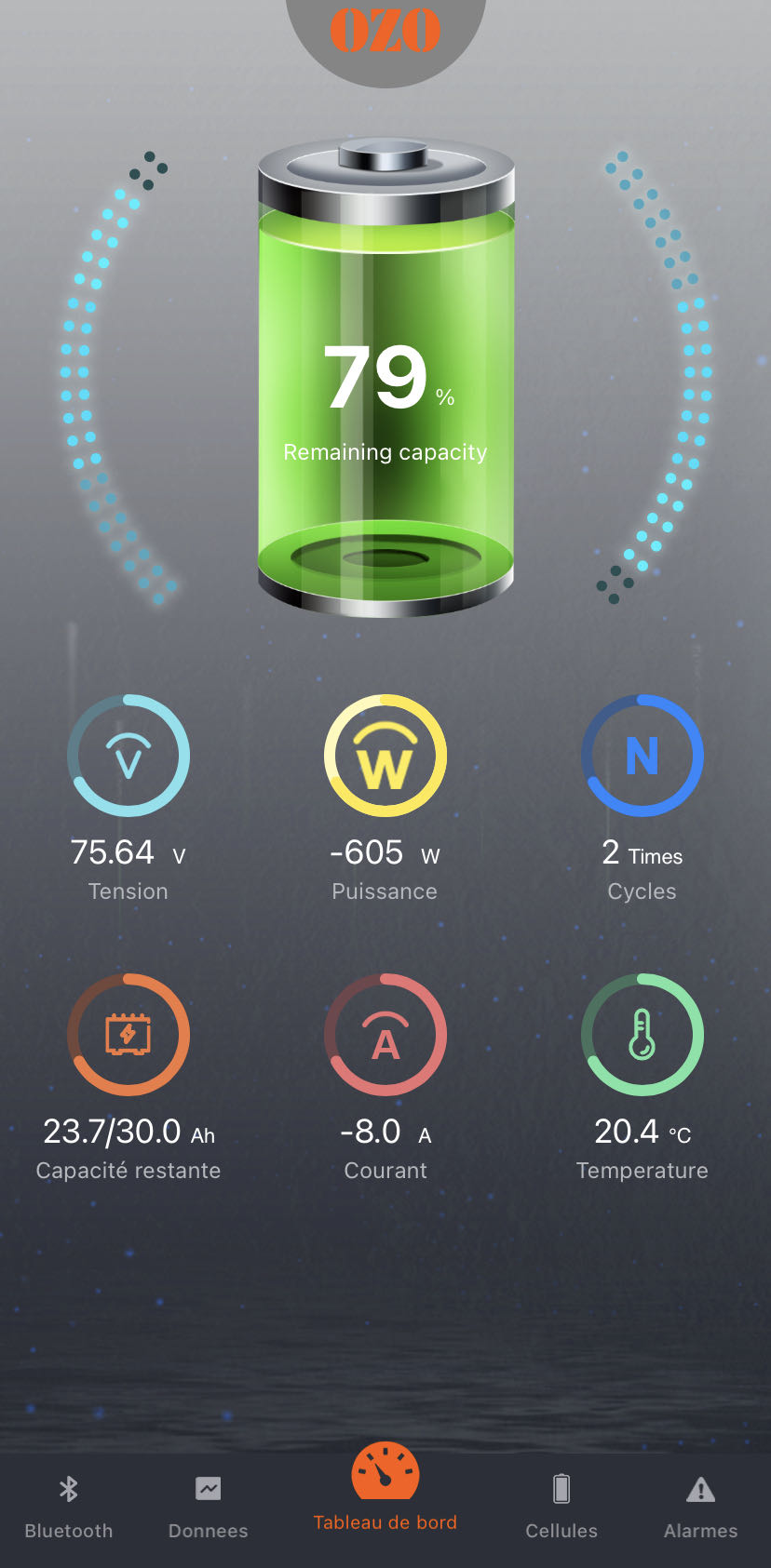
The dashboard view contains all the essential battery information.
In the center in the form of a battery, is represented the remaining autonomy of the battery in %, it is the SoC (State of Charge). If the battery is running (charging or discharging) an animation appears on either side of the drawing of the one. The color of this cell evolves according to the remaining autonomy (from green to orange then red depending on the state of discharge). We find the voltage in Volt (V), the instantaneous power in Watt (W), this value is present only when the battery is charging (positive value) or discharging (negative value).
There is also the number of operating cycle of the battery (number of charge/ discharge with a difference of 80% between the empty voltage and the full voltage). On the line below, it is specified the capacity of the battery in Ampere hour ( Ah), the instantaneous discharge current expressed in Ampere. If the value is negative, the current comes out of the battery, it is in discharge. If the value is positive, the current enters the battery, it is charging.
The last value indicates the internal temperature of the value, this value must be between 10°C and 50°C for an optimized lifetime.
Dashboard
Cells
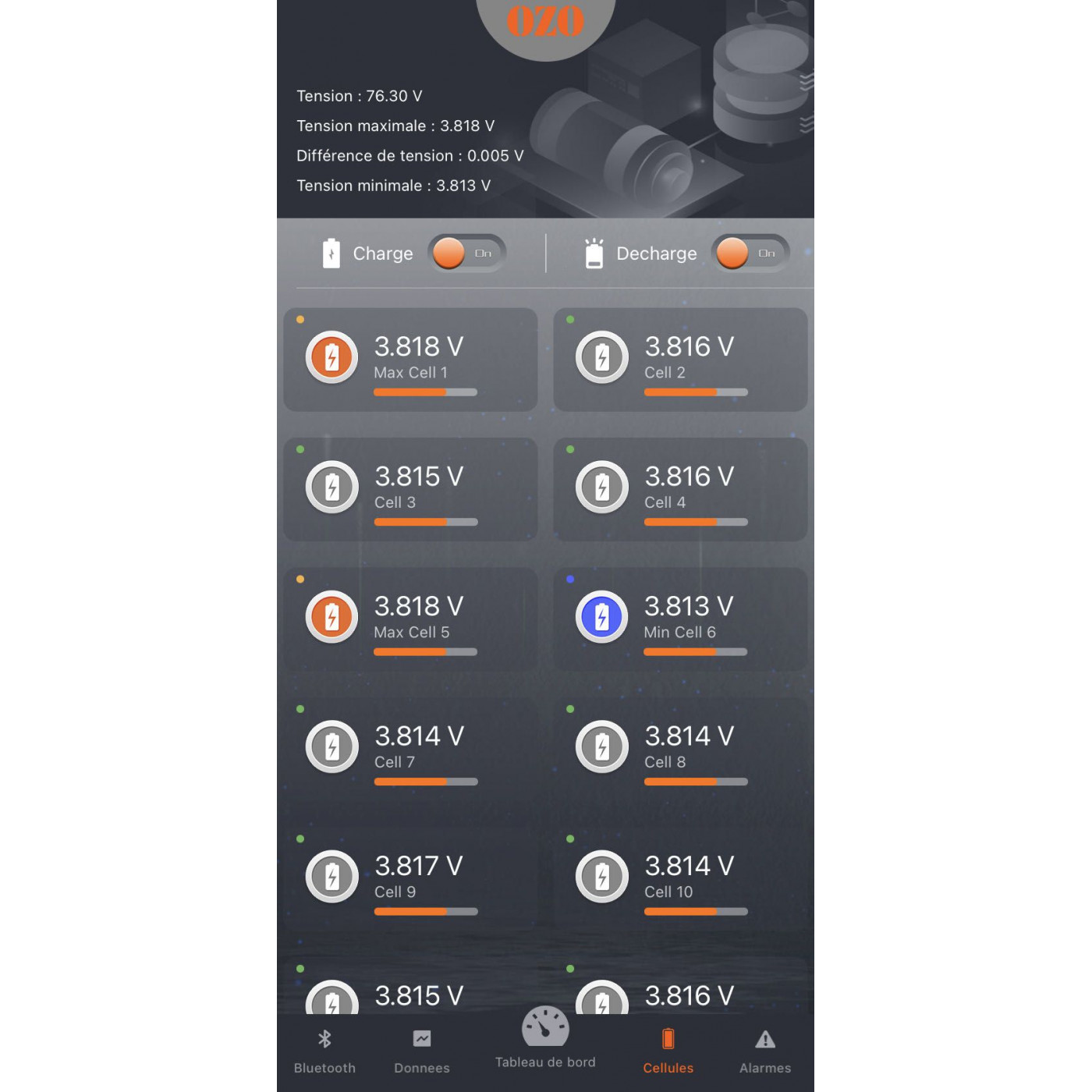
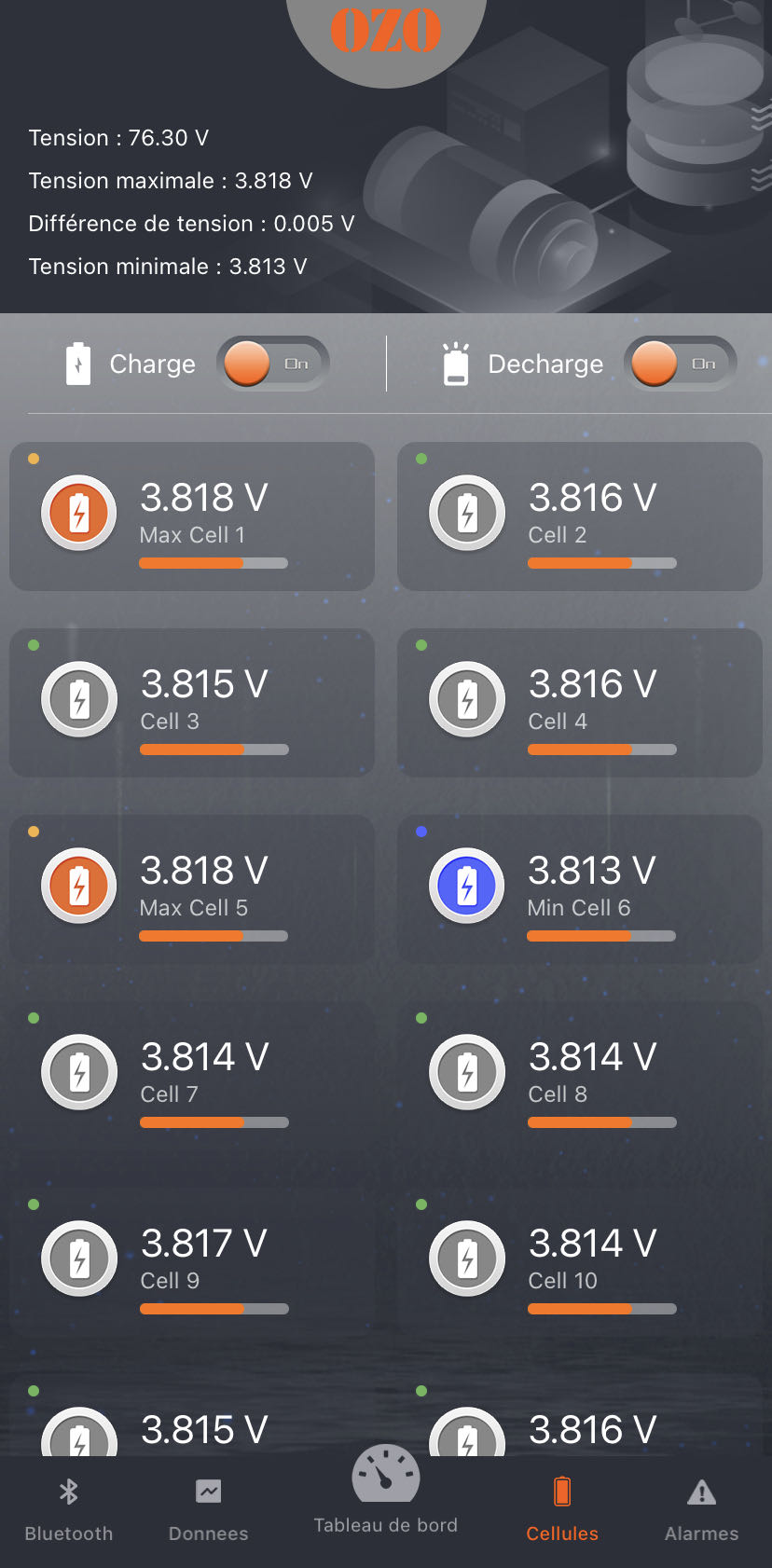
This menu displays the voltage of each row of battery cells.
If you have a motorhome battery with a voltage of 12V for Lithium Iron Phosphate technology, you can observe 4 cells. The minimum and maximum voltages for this LFP technology are 2.6V and 3.6V.
If you have a VAE battery with a voltage of 36V (Some OZO VAE batteries have this option BMS connected Bluetooth, do not hesitate to contact us on batteries@ozo-electric.com), you can then see 10 cells. The minimum and maximum voltages for this NMC technology are 2.9V and 4.2V.
On the first lines at the top left, you find the instantaneous voltage of the battery; the voltage of the cell/row with the highest battery load ( «Maximum voltage»), the voltage of the cell with the lowest battery load («Minimum voltage») and the most important value to monitor the status of your battery, the voltage difference between the minimum and maximum value («Voltage difference»).
If this value is less than 0.1V, the battery is in perfect health. If this is not the case, you will need to contact us at batteries@ozo-electric.com to further investigate the diagnosis. Also on this tab, 2 interesting features to turn off the charging function and stop the charging of the battery and to turn off the discharge in order to turn off the power of the organ connected to the battery. These are the 2 On/OFF switches present next to the 2 cell logos «load» and «discharge».
Cells view
Alarms
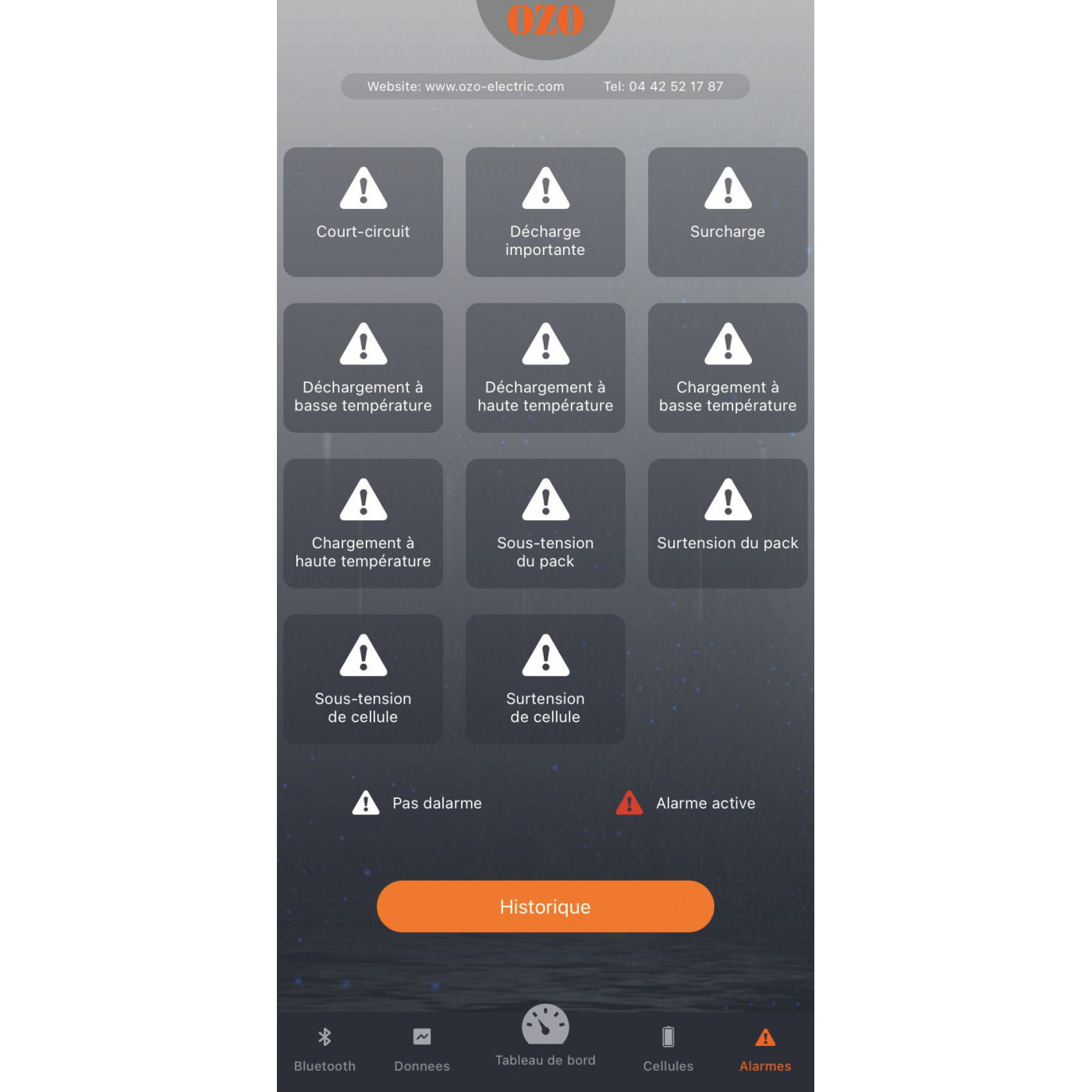
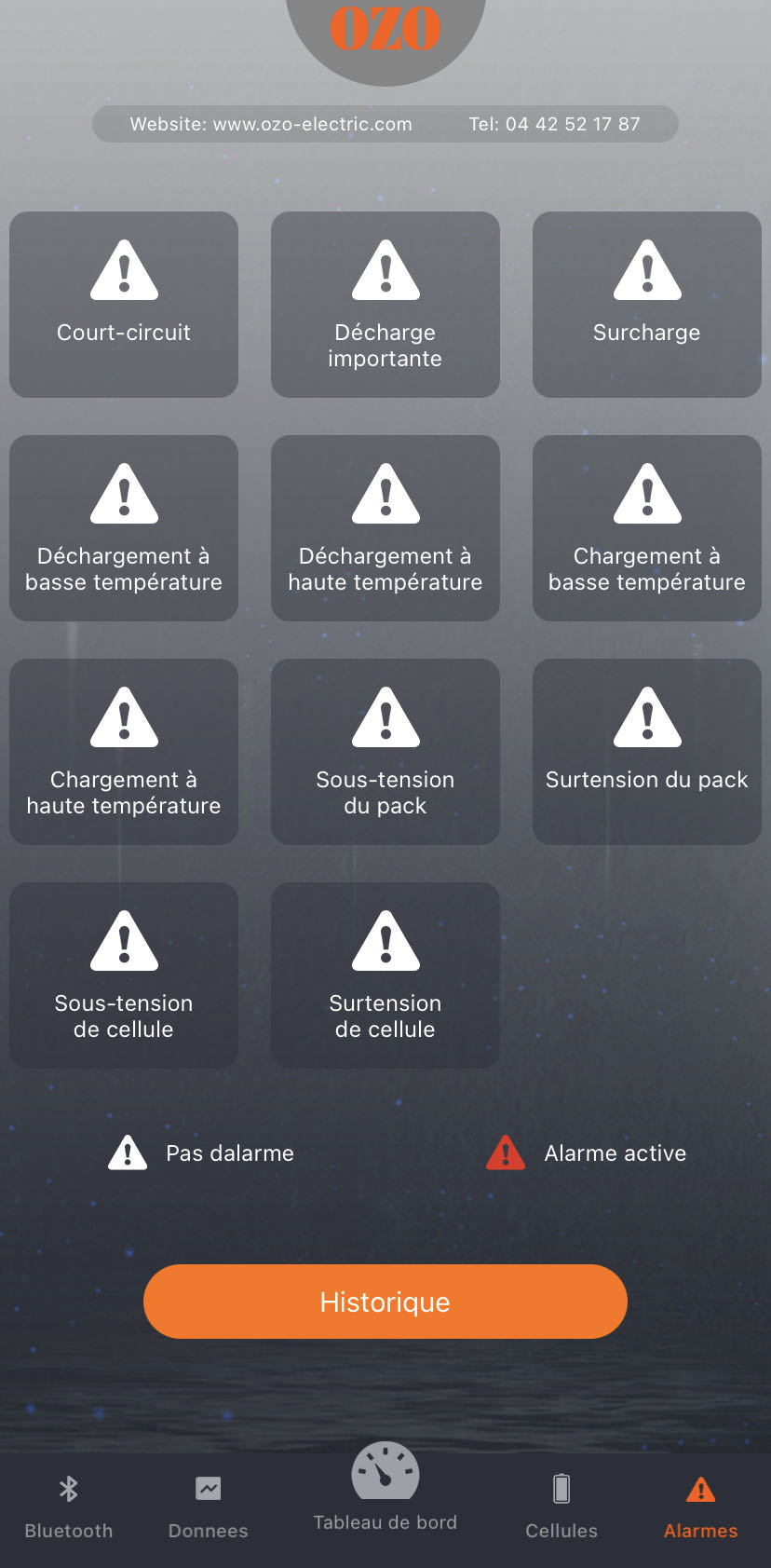
In case of default, you will have to go to this tab.
The current fault will be in red specifying the alarm to be treated. The various alarms are: «Short circuit», «Heavy discharge», «Overload», «Low temperature unloading», «High temperature unloading», «Low temperature loading», «High temperature loading», «Under-voltage pack», "Pack Overvoltage", "Cell Undervoltage", "Cell Overvoltage".
After the default disappears, it remains saved in the "History" tab accessible by the button of the same name in this tab. In case of a defect not related to the ambient temperature of the battery, do not hesitate to contact us by email by sending us screenshots of the different tabs at batteries@ozo-electric.com
Alarms view
Data
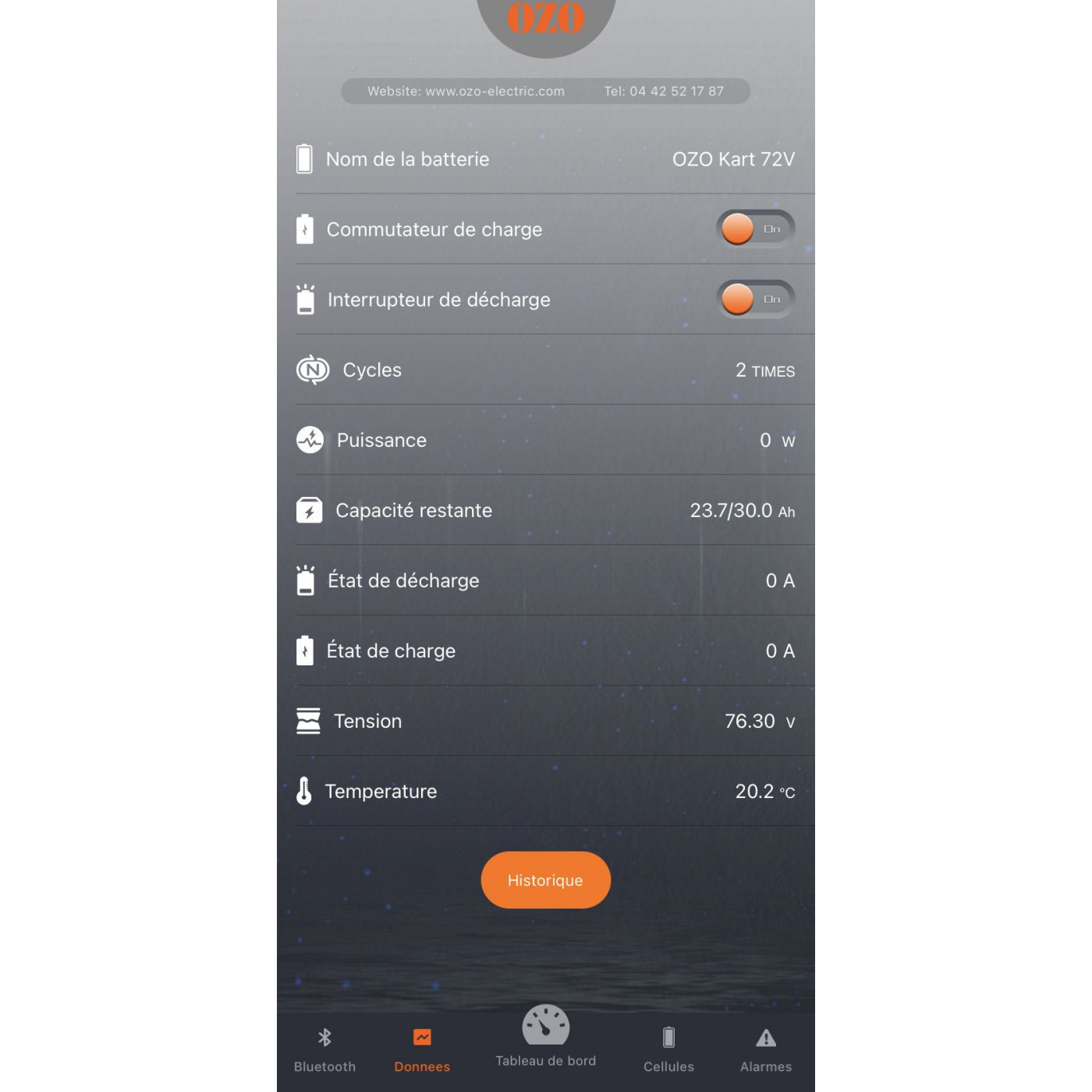
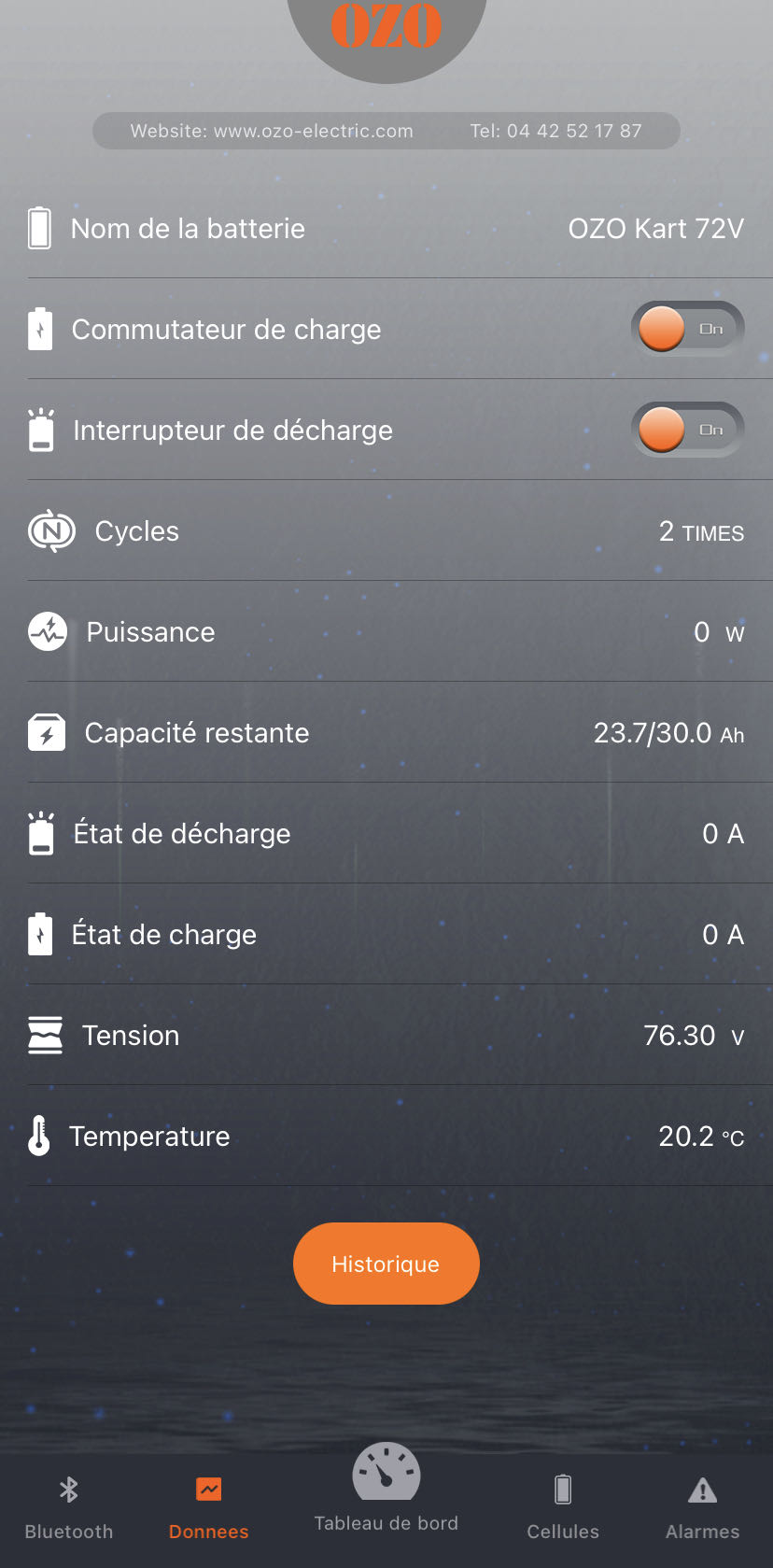
This tab allows to retrieve the information already present on the Dashboard tab but in text format and without the tab. You also find the 2 switches to turn off and turn on the function recharge and discharge the battery.
The main feature of this tab is to be able to change the name of your battery. The number of characters in this field is limited to 15. You can also access the defect history at the bottom of the page by clicking on the «History» button
Data view
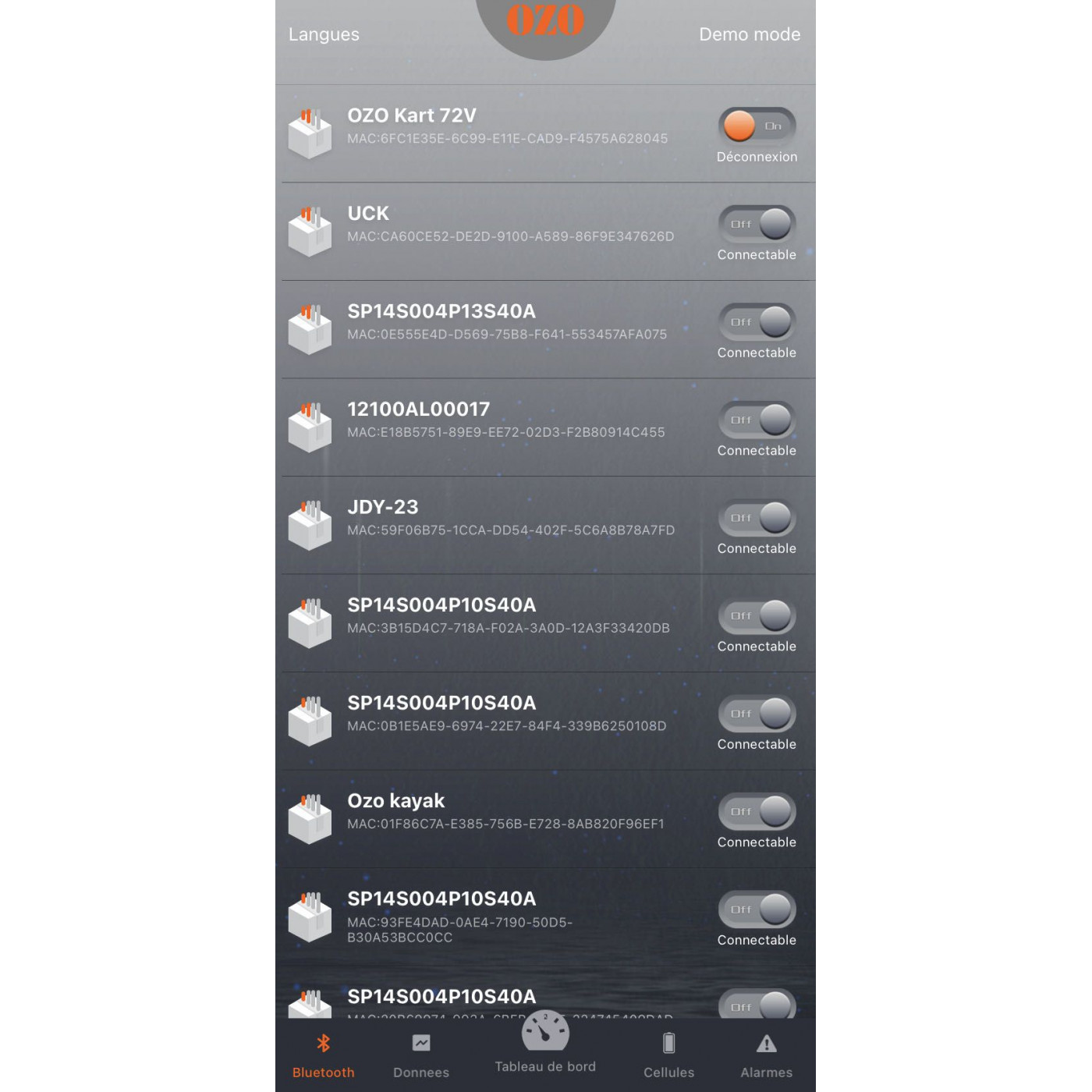
Bluetooth
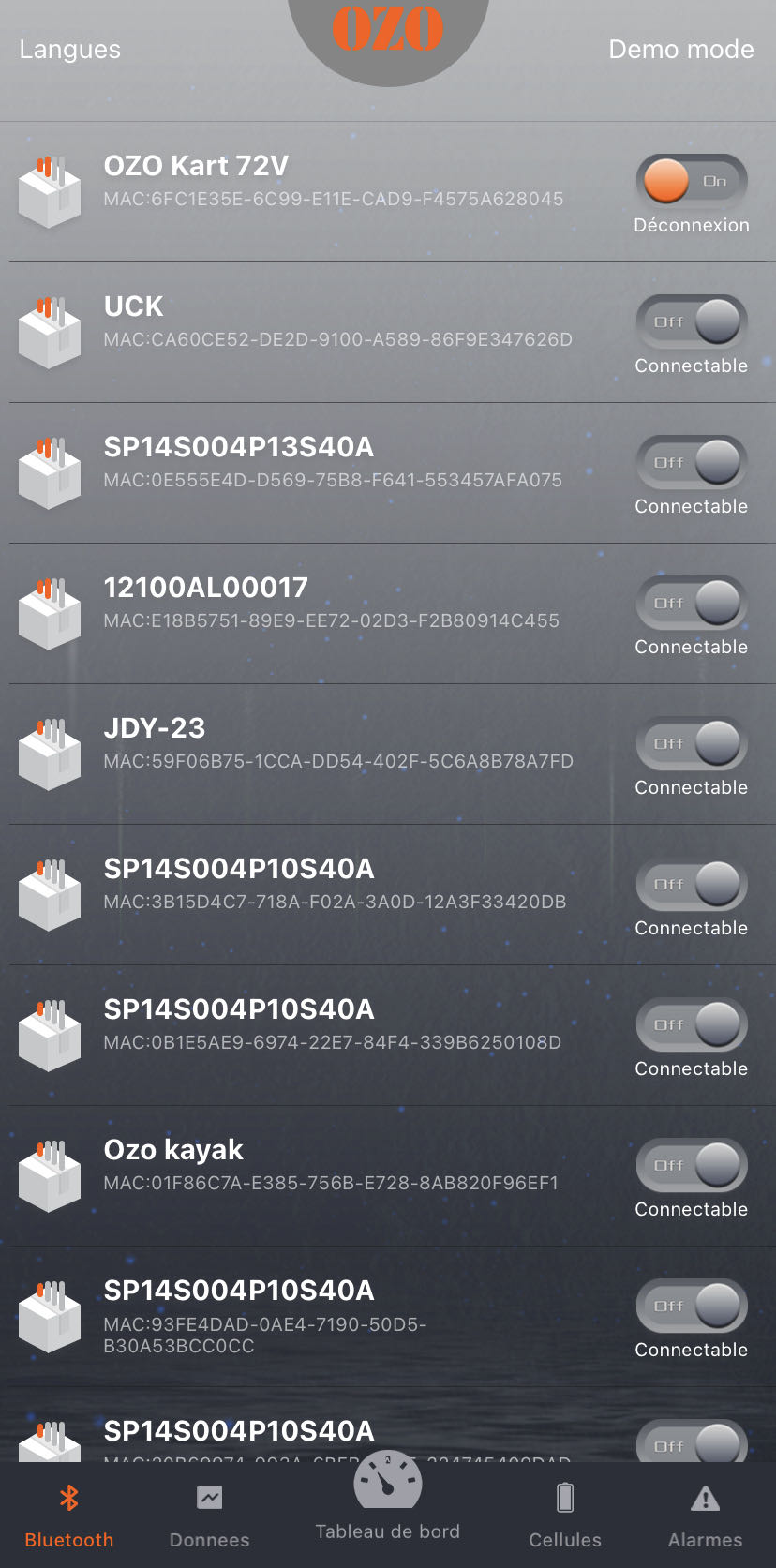
As soon as the application opens, the first active tab is that of Bluetooth with the list of detectable batteries nearby (range about 10m without obstacle).
To select the battery, simply click on the line of the battery name you want to display. If you change the name of your battery in the «Data» tab, the new battery name will be displayed in this menu.
OZO offers an extensive range of 48V Lithium batteries to tailor your electric experience.
Choose your battery capacity based on your range requirements. A 1000Wh battery will provide you with 33% more range...
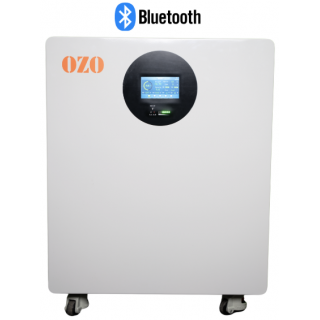
ESS Lithium LFP OZO Battery 48V 10kWh LiFePO4 - Wheel Mounting
Compatible with most grid inverters or hybrid inverters such as Victron, DEYE, Growatt, SMA, Solis, Solark, Goodwe, Sungrow...
With this battery, no...





Leave a review